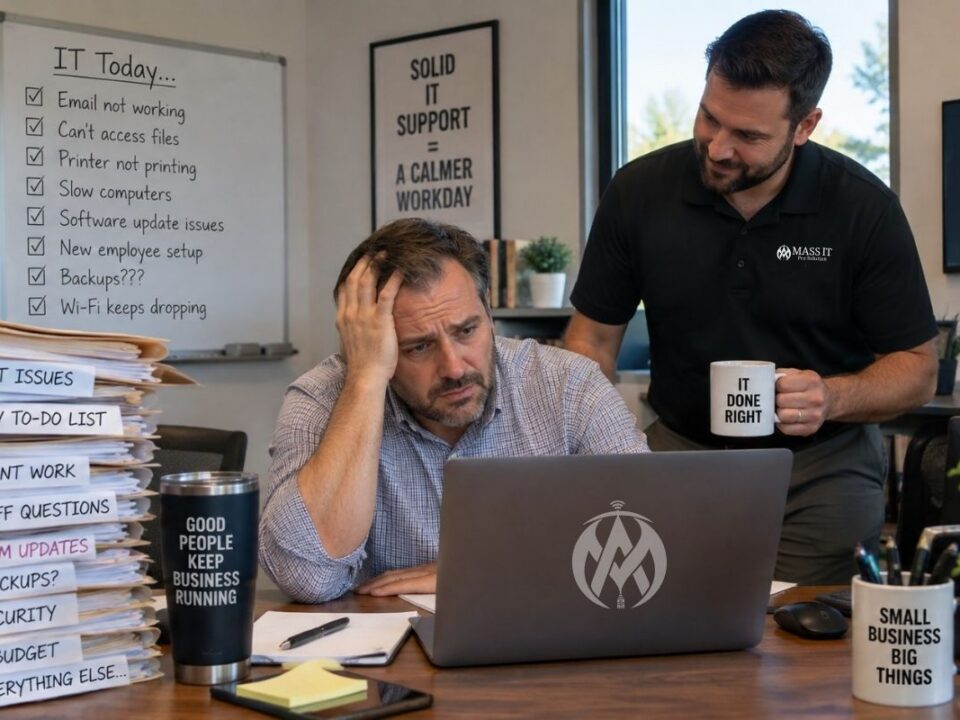


Why root-cause troubleshooting, cybersecurity, documentation, and proactive IT management matter for Massachusetts businesses.
An employee calls because Outlook has stopped sending emails. The obvious solution might be to restart the computer, recreate the Outlook profile, or reset the password. But what if the real issue is a blocked sign-in, an Exchange Online mail flow policy, or a compromised account?
That’s the difference between fixing what someone sees and investigating what’s actually wrong.
Quick answer: Great IT support goes beyond computer repair. It combines structured troubleshooting, root-cause analysis, technical expertise, security awareness, documentation, and ongoing maintenance. The objective is not simply to close a support ticket. It is to restore business operations safely, understand what caused the interruption, and reduce the likelihood of the same problem returning.
For Massachusetts small businesses, that distinction can affect everything from employee productivity to the security of customer information.
What Makes Great IT Support Different From Basic Computer Repair?
There is nothing wrong with replacing a defective hard drive, installing software, or helping an employee reset a forgotten password. Those are important parts of IT support.
The problem begins when every technical issue is treated as an isolated repair.
A modern business might depend on Microsoft 365, Windows and macOS devices, cloud applications, a firewall, Wi-Fi access points, file storage, backup systems, and a collection of industry-specific applications.
Those systems are connected. A problem in one can appear as a failure in another.
Consider these examples:
| What the employee reports | What might actually be wrong | What an engineer needs to investigate |
|---|---|---|
| “Outlook won’t send emails.” | Account restriction, mail flow policy, authentication issue, or client error | Microsoft 365 health, sign-in records, message trace, device behavior |
| “The Wi-Fi keeps disconnecting.” | Poor signal, interference, access point issues, DHCP failure, or a faulty uplink | Wireless coverage, client logs, switching, DHCP, DNS |
| “Our accounting software is slow.” | Server resource contention, database issue, storage latency, or network delay | Application logs, resource utilization, dependencies, server health |
| “I can’t access the shared folder.” | Expired credentials, permissions, DNS, VPN, or server availability | Identity, access permissions, connectivity, service status |
| “My laptop keeps freezing.” | Hardware fault, driver problem, disk saturation, or problematic software | Event logs, hardware diagnostics, updates, running processes |
These are possibilities, not automatic diagnoses.
The professional difference is knowing how to narrow the possibilities using evidence instead of changing settings until something works.
A successful support engagement should address three separate questions:
- How do we restore the affected business function safely?
- What evidence explains why the problem happened?
- What changes, if any, would reduce recurrence?
Sometimes the answer is a straightforward repair. Other times, it requires investigation across multiple systems.
The First Ten Minutes of Troubleshooting Matter More Than You Think
Good IT troubleshooting begins before the technician changes a setting.
When a company reports a technology problem, the first priority is to understand the business impact.
Is one employee affected or the entire office? Is a critical operation stopped? Is sensitive data potentially exposed? Did the problem begin after a known change?
The early investigation should establish a baseline.
A practical IT incident triage checklist
- Identify the affected service. What exactly is failing, and what still works?
- Determine the scope. Is the problem limited to one user, one device, one office, or multiple locations?
- Establish when it started. What was the last known working state?
- Review recent changes. Were there software updates, account changes, DNS edits, firewall modifications, or equipment replacements?
- Assess business impact. Which employees, customers, or critical operations are affected?
- Look for security indicators. Are there suspicious sign-ins, unexpected MFA prompts, security alerts, or unauthorized changes?
- Preserve relevant evidence. Capture error messages, timestamps, event IDs, and diagnostic findings.
- Choose a controlled next step. Test one reasonable hypothesis and record the result.
This is not about making every support call longer.
It is about avoiding unnecessary work.
For example, rebuilding an Outlook profile across ten computers would be wasted effort if the underlying problem were an Exchange Online service incident.
Microsoft provides a Service health dashboard specifically so administrators can review known cloud-service incidents and advisories.
A technician should know when to look there before treating a tenant-wide symptom as ten unrelated desktop problems.
Real-World Troubleshooting Scenario: One Employee Cannot Send Email
Imagine a small professional services office in Waltham, Massachusetts.
An employee reports that Outlook is not sending a time-sensitive client message.
This is an illustrative technical scenario, not a documented Mass IT Pro Solution client incident.
The employee can browse the internet. Their computer is online. Other Microsoft 365 applications appear to work.
A technician who assumes Outlook is corrupt might immediately remove the mail profile and start over.
An experienced engineer investigates the entire message path first.

Step 1: Determine where the failure occurs
The technician should establish:
- Can the employee sign in to Outlook on the web?
- Does the problem occur in both Outlook desktop and the browser?
- Can the employee send internally, externally, or neither?
- Is the message stuck in the Outbox, rejected, or apparently sent?
- Did the sender receive a non-delivery report?
- Are other users or recipients experiencing the same issue?
These answers begin to separate a local application issue from an account, service, or mail-flow problem.
Step 2: Follow the evidence
An engineer might use this investigation path:
EMPLOYEE CANNOT SEND EMAIL
             |
             v
Can the user access Outlook on the web?
             |
       +-----+-----+
       |           |
      NO          YES
       |           |
Check sign-in,   Compare desktop and
identity, MFA,   browser behavior
and service      |
status           v
             Does the message
             leave the mailbox?
                  |
            +-----+-----+
            |           |
           NO          YES
            |           |
       Check client,  Review message
       mailbox and    trace, recipient
       account state  response and policy
            |           |
            +-----+-----+
                  |
                  v
        Verify the finding
        before making changes
                  |
                  v
        Send controlled tests
        and document results
This diagram is a simplified diagnostic framework, not a substitute for Microsoft product documentation.
Step 3: Check Exchange Online message tracing
When the evidence points toward a mail-flow issue, an authorized administrator can use the Exchange admin center.
Exchange admin center → Mail flow → Message trace
Microsoft’s message trace documentation explains how administrators can investigate whether Exchange Online received, processed, rejected, deferred, or delivered a message.
An engineer may review:
| Trace finding | What it may indicate | Important qualification |
|---|---|---|
| Failed | The message encountered a delivery failure | Review the failure details rather than assuming the cause |
| Pending or deferred | Delivery has not completed | Investigate the events and whether further attempts are occurring |
| Delivered | Exchange completed the recorded delivery action | Does not necessarily mean the recipient saw the message in their Inbox |
| Filtered or quarantined | A security or transport policy affected processing | Determine which policy acted and whether it behaved as intended |
Message tracing helps narrow an issue, but it does not automatically explain every client-side failure.
A message that was never submitted to Exchange may require investigation of the client, network connection, authentication, or mailbox state instead.
Step 4: Check for security implications
Suppose the employee also reports unexpected MFA prompts or notices unfamiliar account activity.
Now the situation may involve more than email troubleshooting.
The technician should follow an appropriate security escalation process and review the relevant identity evidence before making disruptive changes.
Disabling MFA just to get someone working again is not a responsible default troubleshooting step.
Any suspected account compromise needs investigation and response appropriate to the evidence and the organization’s incident procedure.
Step 5: Confirm the business problem is actually resolved
A proper validation should include an authorized test of the affected function.
Can the user send an appropriate internal message? Can an external recipient receive a test? Does Outlook work normally after the change? Are there remaining errors?
The technician should record what was found, what changed, and what was verified.
“Outlook opened successfully” and “email delivery is functioning correctly” are not the same result.
Useful Windows Commands for Diagnosing Connectivity Problems
Sometimes a technician needs to determine whether the workstation can resolve a hostname or establish a basic network connection.
Windows PowerShell provides several read-only commands for initial diagnostics.
The examples below do not change device settings. They should be interpreted alongside application logs, security information, and service status.
1. Examine the workstation’s network configuration
# View configured network interfaces,
# IP addresses, gateways, and DNS information.

Get-NetIPConfiguration
What it helps establish: Whether the workstation has an appropriate IP configuration and which gateway and DNS servers it is using.
An IP address alone does not prove that the device has working internet or application connectivity.
2. Check DNS resolution
# Query DNS for the Outlook web hostname.

Resolve-DnsName -Name "outlook.office.com" -Type A
What it helps establish: Whether DNS can return an IPv4 address for the queried hostname.
A successful result does not prove that a Microsoft 365 tenant is healthy, a user can authenticate, or email can be delivered.
3. Test basic TCP connectivity
# Check whether the workstation can establish
# a TCP connection to the specified host on port 443.

Test-NetConnection -ComputerName "outlook.office.com" -Port 443
In the output, TcpTestSucceeded : True indicates that the TCP connection test succeeded.
It does not prove that Outlook authentication, mailbox access, certificates, tenant policies, or mail flow are functioning correctly.
That distinction matters.
An engineer should never declare an application healthy based solely on a successful ping or open network port.
Technical references: Microsoft Resolve-DnsName documentation and Test-NetConnection documentation.
Another Example: When the Problem Looks Like Bad Wi-Fi
Now imagine a construction company’s office in Framingham.
Employees say the wireless network has become unreliable. Video meetings freeze, files take longer to open, and some devices disconnect.
The instinctive response might be to purchase a stronger router or more access points.
But adding hardware before understanding the failure could make the network harder to manage.

What a network engineer should examine
The first question is whether the issue is actually wireless.
If devices connected by Ethernet experience the same delays, the investigation may shift toward the internet connection, switching, routing, DNS, or application performance.
If wired devices are healthy but certain wireless clients are not, the engineer may investigate:
- Received signal strength and signal-to-noise ratio
- Channel utilization and radio interference
- Access point placement and transmit-power settings
- Client roaming behavior
- Access point uplink speed and stability
- Switch port errors and Power over Ethernet capacity
- DHCP address allocation
- VLAN configuration and firewall policies
A device can show a strong Wi-Fi signal and still experience poor application performance.
Signal strength is not the same as network capacity or end-to-end reliability.
A simple network troubleshooting comparison
| Test | Possible finding | Why it matters |
|---|---|---|
| Compare wired and wireless clients | Wired works, wireless struggles | Suggests focusing on wireless conditions |
| Test different office locations | Failures occur in one area | May indicate coverage or localized interference |
| Review switch and AP uplinks | Errors or unexpected link negotiation | May indicate a physical or switching problem |
| Check DHCP and DNS | Inconsistent addressing or resolution | May explain apparent connectivity problems |
| Review firewall and application behavior | Connection or policy failures | Helps separate network access from application issues |
No single result proves the root cause.
The engineer should gather sufficient evidence, make controlled adjustments, and compare performance afterward.
Sometimes new hardware is the right answer. Other times, the solution is correcting a configuration error, replacing a damaged cable, or fixing an unstable switch connection.
For businesses planning network improvements, see our business networking and Wi-Fi solutions.
Why Slow Business Applications Require More Than a Computer Tune-Up
Not every application performance problem is caused by a slow computer.
Imagine an accounting practice in Newton where multiple employees report that their accounting software takes much longer to open company files.
Possible causes may exist at several layers.
| System layer | What might need investigation |
|---|---|
| Employee workstation | CPU, RAM, disk health, drivers, local application errors |
| Network | Latency, packet loss, DNS, routing, wired or wireless connectivity |
| Application server | CPU contention, memory pressure, service health, event logs |
| Storage | Available capacity, latency, disk errors, permissions |
| Database or application | File locks, database integrity, licensing, vendor-specific issues |
| Cloud dependencies | Authentication, hosted service status, internet connectivity |
An engineer should identify whether the problem affects one user or every user, determine the scope, and consult the application’s supported diagnostic procedures.
Changing database files, rebuilding server components, or reinstalling production software without confirming prerequisites and recovery options can introduce additional risk.
The right technical decision may be to involve the software vendor, validate backup recoverability, or plan a controlled maintenance window.
Professional IT support includes knowing when not to make an unverified change.
Fixing the Symptom Is Not the Same as Finding the Root Cause
This distinction is central to reliable IT operations.
A workaround can be valuable, especially when employees cannot work. But a workaround should not automatically be recorded as a permanent resolution.
Consider the difference:
| Temporary restoration | Root-cause investigation |
|---|---|
| Reboot a network switch to restore connectivity | Examine switch logs, link errors, resource utilization, and power conditions |
| Restart a stopped application service | Determine why the service stopped and whether the failure repeats |
| Reconnect a mapped network drive | Investigate authentication, DNS, connectivity, and permission dependencies |
| Clear temporary files to free disk space | Determine why the drive filled and whether storage capacity needs attention |
| Reopen an application after a crash | Review relevant crash details, drivers, dependencies, and available updates |
A temporary fix is not inherently wrong.
Sometimes restoring operations quickly is the appropriate first action. The business may need to work immediately while a deeper investigation is scheduled.
The important thing is to communicate that distinction.
A useful troubleshooting report separates three outcomes
Service restored: The affected business function is operating again.
Cause determined: Evidence supports a conclusion about the underlying problem.
Preventive action identified: A specific improvement, if justified, has been recommended or implemented.
Those outcomes should not be treated as identical.
And sometimes a definitive root cause cannot be established from the available evidence. A professional report should say that clearly instead of inventing certainty.
What a Well-Documented IT Support Ticket Should Include
Documentation is not busywork. It allows another authorized technician to understand the environment without starting every investigation from the beginning.
A useful support record should contain enough information to answer what happened and how the issue was handled.
Example: a completed support record
| Field | Example entry |
|---|---|
| Reported issue | Employee unable to send external messages |
| Business impact | One user affected; outbound client correspondence delayed |
| First observed | Time reported by employee |
| Scope confirmed | Internal sending works; external sending fails |
| Evidence reviewed | Error message, service health, relevant mail trace details |
| Finding | Cause documented only when supported by evidence |
| Action taken | Approved corrective change or workaround |
| Validation | Authorized internal/external message tests |
| Follow-up | Monitoring, escalation, or further investigation if needed |
| Change record | Date, responsible technician, approval where required |
This is a sample documentation format, not an actual customer record.
Documentation also has security responsibilities
Professional documentation may include configuration inventories, vendor contacts, system dependencies, network diagrams, asset information, change history, and recovery procedures.
But a support ticket is not a place to paste passwords, MFA recovery codes, private keys, or other sensitive credentials.
Access to sensitive configuration information should be limited to authorized personnel, and secrets should be handled through approved secure systems.
Good documentation helps preserve operational knowledge without unnecessarily exposing the organization.
Cybersecurity Changes How IT Support Problems Must Be Investigated
A slow workstation could be a performance problem. It could also have security implications.
A locked account could be an ordinary authentication problem or part of suspicious activity.
An unavailable shared folder could involve permissions, a network failure, or unauthorized changes.
This does not mean every technical error is a cyberattack.
It means technicians should be able to recognize when a routine issue requires security escalation.
When does a help desk ticket become a security incident?
An escalation may be appropriate when evidence suggests:
- Unexpected sign-ins or account changes
- Suspicious MFA activity
- Malware or endpoint security alerts
- Unauthorized software execution
- Unexpected encryption or file modifications
- Unexplained privileged account activity
- Potential exposure of sensitive information
The response should follow the organization’s documented procedure, including appropriate containment, evidence preservation, communication, and recovery decisions.
The NIST SP 800-61 Revision 3 incident response guidance emphasizes integrating incident response into broader cybersecurity risk management rather than treating it as an isolated emergency activity.
Ordinary help desk support and managed security monitoring are not automatically the same service. Organizations should understand which security response capabilities their agreement includes, who is authorized to take action, and when escalation coverage applies.
Great IT Support Includes Knowing When to Escalate
One of the signs of technical maturity is recognizing that not every problem should be handled by the same person.
A service desk technician may be able to resolve a routine account issue. A complex routing failure may require a network specialist. A production database problem might need the application vendor. A suspected compromise may require incident-response personnel.
The objective is not to have one engineer memorize every technology.
It is to provide a process that gets the right expertise involved at the right time.
Example escalation framework
USER REPORTS A PROBLEM
          |
          v
SERVICE DESK TRIAGE
Scope • Impact • Severity
          |
          v
Is there evidence of a security incident?
       /        \
     YES         NO
      |           |
Security       Technical
escalation     investigation
      |           |
      |       Can first-line support
      |       safely resolve it?
      |        /         \
      |      YES          NO
      |       |            |
      |    Resolve      Specialist,
      |    and verify   vendor or onsite
      |       |            |
      +-------+------------+
              |
              v
      VALIDATE BUSINESS FUNCTION
              |
              v
      DOCUMENT AND FOLLOW UP
For complicated incidents, different teams may work in parallel.
Escalation responsibilities, response expectations, and service availability should be defined in the applicable support agreement.
Proactive IT Management: What Happens Between Support Tickets?
A business might go several weeks without opening a help desk ticket.
That does not mean its technology requires no attention.
Operating systems still need updates. User accounts change. Security policies need review. Devices age. Backup jobs can fail. Applications become unsupported.
Proactive IT management is the routine work intended to identify and address issues before they become larger disruptions.
It can include:
| Management activity | What should be checked |
|---|---|
| Patch management | Update status, failures, exceptions, required reboots |
| Device monitoring | Hardware health, storage capacity, recurring alerts |
| Microsoft 365 administration | User access, licensing, configuration, relevant service alerts |
| Endpoint cybersecurity | Coverage, unresolved detections, response ownership |
| Backup oversight | Job failures, protected systems, recovery points, restore testing |
| Network maintenance | Device status, firmware planning, capacity and configuration |
| User lifecycle management | New hires, departures, access reviews |
| Technology planning | Unsupported software, aging hardware, upcoming business changes |
No monitoring system eliminates every outage. Not every problem produces an advance warning.
The benefit comes from assigning responsibility for the work, reviewing exceptions, and making informed decisions before a failure forces an emergency response.
Backup monitoring is not the same as recovery verification
A backup dashboard may show that a scheduled job completed.
That is useful information. But the ability to recover depends on much more, including the availability and integrity of the backup, supported restoration procedures, credentials, encryption keys, application dependencies, and recovery objectives.
A meaningful backup plan also includes testing.
Our separate guide, “Your Backups Say Successful. Could Your Business Recover Today?”, explains why recovery tests matter and what owners should ask their IT departments.
Break-Fix IT vs. Managed IT: Which Approach Is Better?
Not every small business needs the same support arrangement.
Break-fix IT generally involves requesting assistance when a specific problem occurs.
Managed IT services assign defined recurring responsibilities for the covered systems, which may include user support, monitoring, updates, security, backups, and planning.
| Consideration | Break-fix support | Managed IT services |
|---|---|---|
| Primary purpose | Address individual problems | Maintain and support a defined environment |
| Billing | Typically per incident, project, or hour | Usually recurring with defined scope |
| Device monitoring | Only when separately arranged | May be included for covered devices |
| Patch management | Requested or separately contracted | Often defined as an ongoing responsibility |
| Cybersecurity oversight | Depends on purchased services | Depends on security components included |
| Backup responsibility | Must be arranged explicitly | May be included under an agreed backup scope |
| Long-term planning | Usually separate | May include recurring technology reviews |
A one-person business with uncomplicated technology might find occasional support sufficient.
A growing law firm, accounting office, construction company, or healthcare practice may need more structured support because several employees depend on interconnected systems.
Managed IT is not automatically cheaper, faster, or more secure in every situation. The outcome depends on the provider, agreement, technology environment, and how services are actually delivered.
For more information, explore managed IT services for Massachusetts businesses.
Seven Questions to Ask Your IT Provider About Troubleshooting Quality
Whether you already use an MSP or hire technicians as needed, ask how they investigate and document problems.
- Do you establish the scope and business impact before troubleshooting?
- How do you distinguish a temporary workaround from a verified resolution?
- What evidence do you collect when a recurring problem has no obvious cause?
- Do you document configuration changes and important support findings?
- What happens when an issue needs a network, cloud, security, or application specialist?
- How do you verify that the affected business function works after a repair?
- Do you review recurring issues to identify opportunities for preventive maintenance?
A good provider should be able to explain its approach without hiding behind complicated terminology.
And if the investigation remains inconclusive, it should communicate what has been ruled out, what remains possible, and what the next reasonable step would be.
What Massachusetts Businesses Should Expect From an IT Support Partner
A Boston law firm may need dependable access to confidential documents and Microsoft 365.
A Waltham accounting practice may need reliable tax and financial applications.
A Framingham contractor may depend on project files, cloud collaboration, and devices used between the office and job sites.
A Worcester professional services firm may need help coordinating employees, software vendors, workstations, and remote access.
Each environment has different requirements, but the underlying support principles remain consistent.
A business should expect its IT provider to understand its critical systems, investigate problems carefully, communicate limitations, and explain which support and security responsibilities are covered.
The Mass IT Pro Solution approach
At Mass IT Pro Solution, we believe technical support should begin with understanding the problem, not immediately recommending a replacement product.
We help Massachusetts businesses with IT troubleshooting, Microsoft 365 administration, network and Wi-Fi issues, endpoint cybersecurity, backup and recovery planning, workstation support, and ongoing managed IT services.
Our goal is to connect the technical work to the business need.
When an employee cannot access email, the issue is not simply an Outlook error. It is interrupted communication.
When the network becomes unreliable, the problem is not just an access point. It is employees struggling to complete their work.
When a backup has never been tested, the concern is not just backup software. It is uncertainty about whether operations can be restored.
We want businesses to understand what went wrong, what was done about it, and what may help them avoid the same issue in the future.
The appropriate service scope, response arrangements, and technical responsibilities are established through the specific engagement or managed service agreement.
Frequently Asked Questions About Professional IT Support
What is the difference between IT support and computer repair?
Computer repair focuses on resolving a specific hardware or software issue. Business IT support may also investigate networks, identities, cloud applications, cybersecurity, servers, backups, permissions, and dependencies that affect company operations.
What does root-cause analysis mean in IT support?
Root-cause analysis is the process of examining evidence to determine the underlying conditions that caused or contributed to a technical problem. It goes beyond treating the immediate symptom. Some incidents have multiple contributing factors, and a definitive cause is not always identifiable.
Why does the same computer problem keep happening?
Recurring problems may result from unresolved software defects, hardware faults, configuration issues, conflicting applications, authentication problems, or environmental dependencies. A repeated restart may restore functionality temporarily without addressing why the failure occurred.
Should a technician reinstall Windows whenever a computer becomes slow?
No. Reinstallation may be appropriate in certain circumstances, but performance problems should first be evaluated based on symptoms, hardware condition, resource usage, operating system health, applications, and security findings. Important data and application requirements should be addressed before any destructive action.
Is Microsoft 365 support different from regular IT support?
Microsoft 365 support often requires knowledge of Exchange Online, Microsoft Entra ID, authentication, licensing, Teams, OneDrive, SharePoint, security policies, and administration. Some issues can be resolved on a workstation, while others require authorized tenant-level investigation.
Can good IT support prevent all cybersecurity incidents?
No. IT management and security controls can help reduce certain risks, improve detection, and support response and recovery. They cannot guarantee that every attack, outage, or data-loss event will be prevented.
Is remote IT support as effective as on-site support?
Remote support can be appropriate for many software, account, Microsoft 365, and configuration issues. Physical cabling, equipment failures, wireless surveys, hardware replacements, and certain network problems may require an on-site visit. The correct approach depends on the issue and access available.
How do I know whether my business needs managed IT services?
Consider how often technology problems interrupt work, whether devices and security updates are actively managed, who handles employee access changes, whether backups are tested, and whether responsibilities are clearly assigned. Recurring problems and unclear ownership may indicate that a managed or co-managed IT arrangement is worth evaluating.
Great IT Support Should Leave Your Business Better Informed
A completed support ticket should mean more than “the computer works again.”
The people responsible for the business should understand what was affected, what the technician discovered, what was changed, and whether anything needs further attention.
Sometimes that requires a five-minute correction.
Sometimes it requires a network investigation, vendor coordination, or a carefully planned change.
And sometimes the most responsible answer is that more evidence is needed before making a permanent change.
Great IT support is not about making the problem disappear from the screen. It is about understanding the technology well enough to make an informed, supportable decision.
That is the standard businesses should look for when choosing an IT support partner.
Need Professional IT Support in Massachusetts?
If your employees are dealing with recurring technology issues, unreliable business systems, Microsoft 365 problems, network interruptions, or unclear IT responsibilities, Mass IT Pro Solution can help evaluate the environment and recommend an appropriate next step.
We provide business IT support, managed IT services, Microsoft 365 administration, networking, cybersecurity, and backup solutions throughout Greater Boston and surrounding Massachusetts communities.
When contacting us, tell us what is happening, how many people are affected, when the issue started, and whether any changes were recently made. Those details help begin a more focused technical assessment.
Mass IT Pro Solution
Business IT Support | Managed IT Services | Cybersecurity | Microsoft 365 | Networking
Phone: 508-254-4704
Email: support@massitpro.com
Services, response times, monitoring coverage, and technical responsibilities depend on the agreed scope. No provider can guarantee that every issue will be permanently resolved, every cyberattack prevented, or all operational interruptions avoided.