
Your business uses Microsoft 365 for email, files, and collaboration. But what happens when someone deletes an important mailbox, ransomware changes hundreds of files, or a former employee’s OneDrive disappears?
Imagine arriving at your office on Monday morning and discovering that an employee’s OneDrive folders are missing.
The accounting department cannot find several spreadsheets. A shared project folder contains the wrong versions of important documents. Someone asks when the files were last backed up.
Your office manager has a reasonable response:
“Everything is stored in Microsoft 365. Doesn’t Microsoft back it up?”
That question exposes one of the most misunderstood parts of cloud computing.
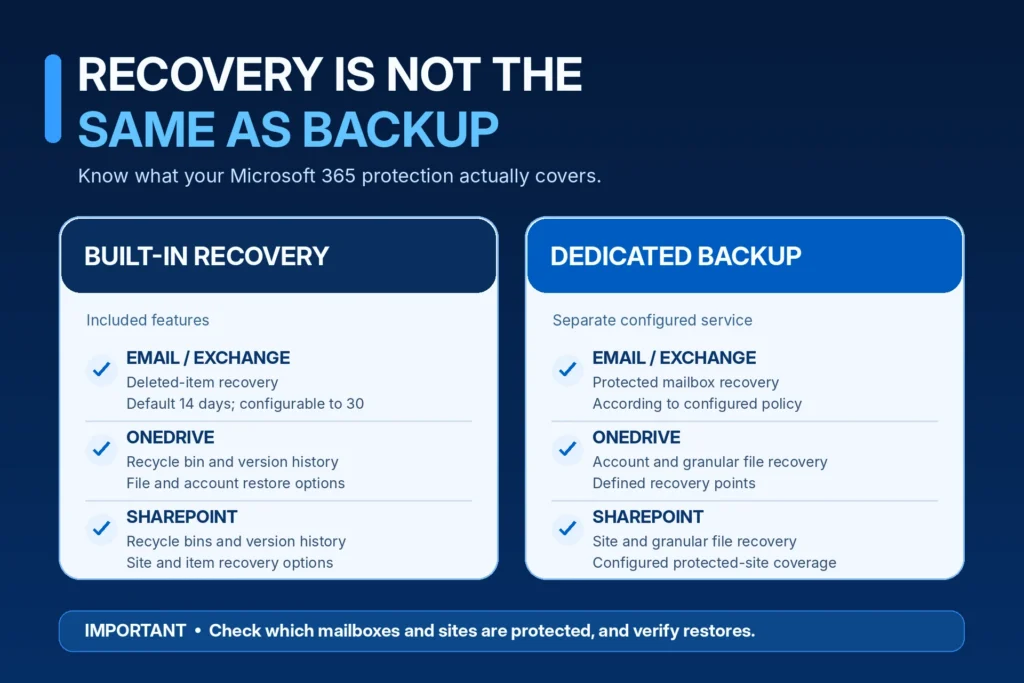
Quick answer: Microsoft 365 includes built-in recovery features for Exchange Online, OneDrive, and SharePoint. Microsoft also offers a separate Microsoft 365 Backup service. However, having a Microsoft 365 subscription does not automatically mean every mailbox, file, collaboration workload, and business recovery requirement is protected by a complete backup plan.
The real questions are what you can restore, how far back you can go, how quickly recovery can happen, and who is responsible for making it work.
For Massachusetts businesses depending on Microsoft 365, those answers should be established before something goes missing.
Does Microsoft 365 Automatically Back Up Everything?
No. But that doesn’t mean Microsoft 365 has no data protection.
Microsoft operates highly resilient cloud infrastructure and provides several built-in recovery mechanisms.
Depending on the workload and configuration, these may include:
- Deleted email recovery
- OneDrive and SharePoint recycle bins
- File version history
- OneDrive point-in-time restoration
- SharePoint site recovery
- Microsoft Purview retention capabilities
- Dedicated Microsoft 365 Backup, when separately configured
These features perform different functions.
A recycle bin helps recover recently deleted content.
Version history helps recover earlier versions of files.
Retention policies help preserve information according to organizational requirements.
A backup service provides defined recovery points and recovery operations for supported workloads.
Those capabilities are related, but they are not interchangeable.
Microsoft’s own Microsoft 365 Backup FAQ distinguishes the company’s underlying disaster-recovery architecture from historical point-in-time backup.
That distinction is where a responsible backup strategy begins.
Cloud Storage, Synchronization, Retention, and Backup: What’s the Difference?
Business owners often use the word backup to describe several unrelated features.
Understanding the difference is essential.
| Technology | What it does | What it doesn’t automatically guarantee |
|---|---|---|
| Cloud storage | Stores information in an online service | Historical recovery of every deleted or changed item |
| File synchronization | Keeps designated files synchronized across devices | An independent, protected copy of every previous file state |
| Version history | Retains selected earlier file versions | Unlimited versions or whole-business recovery |
| Recycle bin | Provides recovery for certain deleted items | Recovery after every deletion, purge, or expiration |
| Retention policy | Preserves or deletes information according to defined rules | Fast operational restoration of an entire environment |
| Dedicated backup | Captures recoverable data for supported workloads under defined policies | Coverage of workloads that were never selected or supported |
Why OneDrive synchronization can create confusion
Suppose an employee synchronizes company documents between a Windows laptop and OneDrive.
They accidentally delete a folder.
Depending on how the folders are synchronized, that deletion may propagate to the cloud and other connected devices.
The employee might assume their laptop still has a separate safe copy.
It may not.
OneDrive provides useful recovery options, but synchronized files are not the same thing as an independently managed backup.
The correct recovery approach depends on the deletion, version history, recycle-bin state, and any additional protection configured by the organization.
What Does Exchange Online Actually Protect?
Exchange Online powers business email for many Microsoft 365 organizations.
It includes built-in mechanisms for recovering deleted mailbox items.
But businesses need to understand the specific recovery windows.
Deleted Items versus Recoverable Items
Consider an employee who deletes an important email.
The message typically moves to the Deleted Items folder.
If the employee then removes the message from Deleted Items or permanently deletes it, Exchange Online can retain it within the Recoverable Items structure.
Microsoft documents a 14-day default retention period for items removed from Deleted Items, which administrators can configure up to 30 days.
This is not the same as saying every email disappears 14 days after the employee initially clicks Delete.
The Deleted Items folder, Recoverable Items, retention policies, holds, and backup services have distinct behaviors.
For technical details, see Microsoft’s Exchange Online deleted-item retention documentation.
When native Exchange recovery may be enough
A user accidentally removes a recent message.
The email remains within an applicable recovery window.
An authorized user or administrator restores it.
That is a normal situation where built-in recovery may be completely appropriate.
When the situation becomes more complicated
Imagine an accounting firm discovers that important financial correspondence was deleted several months ago.
The organization may need to determine:
- Whether the items remain within any applicable retention or hold
- Whether the mailbox is still active
- Whether the original employee account was deleted
- Whether a dedicated backup policy protected the mailbox
- Whether an authorized recovery method exists
An ordinary deleted-item recovery window may no longer help.
The existence of Exchange Online does not establish that every historical email can be recovered indefinitely.
Does OneDrive for Business Include Backup?
OneDrive for Business includes useful recovery features.
That is an important distinction because some marketing discussions incorrectly imply that OneDrive has no recovery capabilities at all.
OneDrive recycle bin
Microsoft documents that deleted files in work or school OneDrive environments can generally remain recoverable through the recycle-bin process for up to 93 days.
This is the overall recovery window through the applicable recycle-bin stages, not 93 days in each stage.
Other retention settings, permissions, and deletion circumstances can affect the outcome.
OneDrive version history
Version history allows users to inspect and restore previous file versions when those versions are available.
This can help when someone overwrites a spreadsheet, edits the wrong document, or needs an earlier version of a file.
The available version history depends on the organization’s configuration and the file’s history.
Restore your OneDrive
Microsoft also provides a feature that allows eligible Microsoft 365 users to undo file and folder activity within the previous 30 days.
This can be helpful after accidental bulk deletion, corruption, or unwanted changes.
However, an account-wide restore is not something to perform casually.
Reverting activity can also affect legitimate changes made after the selected restore point.
Microsoft explains those behaviors in its Restore your OneDrive documentation.
A practical example
An employee accidentally overwrites a project estimate yesterday.
The earlier version may be available in OneDrive version history.
Now consider a different situation.
A business discovers that hundreds of files were changed, deleted, or corrupted over several weeks.
The company may need to reconstruct which versions are healthy, which changes should remain, and what recovery operation would minimize disruption.
Recovering one spreadsheet and recovering an entire department’s files are very different technical problems.
Does SharePoint Online Have Its Own Backup?
SharePoint Online includes recovery and resiliency capabilities, including recycle bins, version history, and site recovery.
But a SharePoint document library is not automatically protected by a separately configured backup policy just because it exists in Microsoft 365.
The 93-day recycle-bin window
For ordinary deleted items, Microsoft documents a 93-day retention period across the SharePoint recycle-bin process.
Deleted SharePoint sites are also generally retained for 93 days, subject to applicable behavior and conditions.
This is useful for accidental deletion.
It isn’t a promise that every deleted file or site can always be restored during that period regardless of what administrators or other processes do.
Microsoft documents the details in its SharePoint recycle-bin recovery guide.
Why SharePoint recovery requires planning
Imagine a law firm’s document-management workspace.
The firm has separate folders or sites for client matters, templates, financial records, and internal administration.
If a large collection of files becomes corrupted, the organization needs more than a generic restore button.
It must determine:
- Which site or library is affected
- Which files remain healthy
- Which version or restore point is appropriate
- Whether permissions or metadata changed
- Whether restoration could overwrite legitimate work
- How affected employees will validate the recovered content
For business-critical SharePoint data, restoration should be tested in a controlled manner.
What Happens to Microsoft Teams Data?
This is an area where business owners should be particularly careful about assumptions.
Teams isn’t simply one folder or one database.
Different types of Teams information depend on different Microsoft 365 services.
For example, standard Teams channel files are generally stored in SharePoint, while files shared in certain chats are stored in OneDrive.
Other Teams information, including chats, meeting-related content, recordings, and application data, can involve different storage and compliance mechanisms.
Why that matters for backup
A backup product that protects SharePoint and OneDrive may protect important Teams-related files.
That does not automatically mean it provides complete backup and restoration of every Teams conversation, meeting artifact, or connected application.
Before selecting a backup product, identify which Teams workloads matter to the business.
Ask the vendor to demonstrate how each supported workload can actually be restored.
Don’t assume that a product described as “Microsoft 365 backup” protects every Microsoft 365 application equally.
Microsoft 365’s Shared Responsibility Model
Microsoft operates the underlying cloud platform.
Your business remains responsible for important decisions about its information.
Microsoft’s shared-responsibility documentation explains that customers retain responsibility for their data, identities, configurations, and the cloud components they control.
In practical terms:
| Responsibility | Microsoft | Your business / authorized IT provider |
|---|---|---|
| Physical datacenter infrastructure | Operates and protects | Not normally responsible |
| Core Microsoft 365 platform | Operates supported services | Configures subscribed capabilities |
| Employee identities | Provides identity platform | Manages users, MFA, permissions, and access |
| Business data | Provides storage and service capabilities | Defines protection, retention, ownership, and recovery requirements |
| Backup coverage | Offers native recovery and backup products | Selects workloads, configures policies, reviews recovery |
| Employee offboarding | Provides administrative tools | Approves access changes and preserves required information |
| Recovery validation | Provides supported restoration functions | Confirms restored information meets business needs |
The exact responsibilities depend on the Microsoft service, licenses, configuration, and any managed-service agreement.
Outsourcing administration does not eliminate the organization’s responsibility for determining what information matters.
What Is Microsoft 365 Backup, and How Is It Different?
Microsoft offers a dedicated product called Microsoft 365 Backup.
It is designed for protected point-in-time recovery of supported Microsoft 365 workloads.
As documented by Microsoft in November 2026, the supported core workloads include:
- Exchange Online mailboxes
- OneDrive accounts
- SharePoint sites
Microsoft 365 Backup supports configurable recovery windows, including three months, six months, one year, and two years, subject to the applicable product configuration and functionality.
What it adds beyond ordinary recycle-bin recovery
The dedicated service provides centrally managed backup policies and restoration capabilities.
Microsoft documents recovery-point behavior designed to support recovery from scenarios such as:
- Accidental or malicious deletion
- Unwanted bulk file changes
- Ransomware-related content modifications
- Loss of important mailbox items
- Larger-scale recovery events
The service also supports restoration to appropriate original or alternative locations, depending on the workload and operation.
Granular recovery matters
Microsoft’s current restore documentation describes granular file and folder restoration for OneDrive and SharePoint, alongside broader account or site recovery capabilities.
Exchange Online restoration supports relevant mailbox-item recovery.
These are meaningful capabilities, but administrators must still understand the selected restore point and the effect of each operation.
A full site or OneDrive rollback can replace newer content or metadata when restored into the original location.
Where supported, restoring into an alternative location may provide a safer way to inspect recovered information before moving selected content into production.
Read Microsoft’s Microsoft 365 Backup overview and restore documentation for current capabilities.
What Microsoft 365 Backup doesn’t automatically solve
Purchasing or enabling the service does not determine your business’s recovery priorities.
Someone still needs to decide which accounts and sites are protected.
Someone must approve the recovery policies.
And someone must validate that important information can be restored.
A product can provide powerful backup capabilities while the organization still has incomplete coverage.
Microsoft 365 Native Recovery vs. Microsoft 365 Backup vs. Third-Party Backup
The correct choice depends on the organization.
There is no reason to dismiss Microsoft’s native tools when they meet a legitimate recovery need.
There is also no reason to assume those tools are sufficient for every business.
| Consideration | Native Microsoft 365 recovery | Microsoft 365 Backup | Third-party Microsoft 365 backup |
|---|---|---|---|
| Primary purpose | Recover selected deleted or changed information | Dedicated backup and recovery for supported workloads | Dedicated backup and recovery according to product capabilities |
| Exchange protection | Deleted-item recovery, retention, and holds | Supported mailbox backup and item restoration | Varies by vendor and plan |
| OneDrive protection | Recycle bin, version history, restore options | Protected account and granular recovery capabilities | Varies by vendor and plan |
| SharePoint protection | Recycle bins, versioning, and site recovery | Protected site and granular recovery capabilities | Varies by vendor and plan |
| Retention | Based on native policies and features | Configurable backup recovery windows | Based on vendor and purchased configuration |
| Recovery administration | Multiple native interfaces and processes | Centralized backup administration | Vendor-specific console |
| External storage or separation | Not a separate third-party backup by default | Microsoft-operated backup architecture | Depends on vendor architecture |
| Teams workload coverage | Depends on underlying Microsoft services | Not universal coverage of all Teams data | Must be checked workload by workload |
| Billing | Native capabilities depend on subscription | Additional consumption-based charges | Vendor-specific pricing |
| Best fit | Defined short-term recovery needs | Microsoft-focused backup and recovery requirements | Requirements needing specific vendor functionality or architecture |
The correct decision is based on recovery requirements, not whether the solution has Microsoft or another vendor’s logo on it.
Questions to ask a backup vendor
Before signing an agreement, request a written explanation of:
- Supported Microsoft 365 workloads and exclusions.
- How shared mailboxes are handled.
- Whether employee archives are included.
- Available retention periods.
- Supported restore destinations.
- Granular versus full-environment recovery.
- Protection against unauthorized backup deletion.
- Administrative access requirements.
- Monitoring and alerting capabilities.
- Data residency and export considerations.
- Restoration performance expectations.
- Licensing, storage, and recurring charges.
Ask for an actual restore demonstration where practical.
A feature comparison without evidence of recoverability is incomplete.
How Much Does Microsoft 365 Backup Cost?
Microsoft 365 Backup uses a consumption-based billing model.
Microsoft’s published list price, as of November 2026, is $0.15 per GiB per month of protected content for the native backup service.
That is not necessarily the total amount a business will pay for a managed backup service.
A managed provider may separately charge for implementation, administration, monitoring, support, testing, or other contracted services.
Why billing may be higher than expected
Microsoft’s calculation can include more than the current visible size of files.
Protected consumption may also account for applicable archive content and retained deleted or versioned information.
If data changes frequently, retained recovery content can affect billed usage.
A business should estimate protected storage using the actual tenant inventory and Microsoft’s current billing methodology.
For the exact calculation, see the official Microsoft 365 Backup pricing documentation.
Do all businesses need the same backup plan?
No.
A five-person consulting firm with ordinary documents may have very different needs from an accounting firm managing several years of financial correspondence.
A law firm may need carefully governed client records.
A construction company may need access to shared project files and accounting information across multiple locations.
The appropriate backup policy should reflect operational requirements, data volume, retention needs, and risk.
What Happens to OneDrive and Email When an Employee Leaves?
Employee offboarding is one of the easiest places for a small business to create an unintended data-retention problem.
Consider a departing office administrator.
Their OneDrive contains shared procedures, vendor information, business spreadsheets, and files that other employees still use.
Their Exchange mailbox includes supplier correspondence and important historical decisions.
Someone removes the Microsoft 365 account because the employee no longer works for the company.
But no one confirms what information needs to be retained.
OneDrive and deleted users
Microsoft documents a 30-day default retention period for a deleted user’s OneDrive, which administrators can configure differently within supported limits.
There are additional account and site recovery considerations, including unlicensed-account behavior and deleted-site recovery.
The exact result depends on the configuration and timing.
See Microsoft’s OneDrive retention and deletion documentation.
A safer offboarding process
Before permanently deleting an employee account:
- Identify the information the employee owns.
- Confirm which business files must remain accessible.
- Review mailbox and OneDrive retention requirements.
- Determine whether data should be transferred or preserved.
- Identify applicable holds or legal obligations.
- Review backup-policy membership.
- Remove unnecessary access and active sessions.
- Document the completed changes.
Don’t treat deleting a Microsoft 365 account as the first step in offboarding.
Securing access and preserving required business information should be coordinated through an approved process.
Microsoft 365 Backup and Ransomware: What Can Actually Be Recovered?
Ransomware is not always limited to files stored on one computer.
If affected files synchronize with OneDrive or SharePoint, unwanted modifications may appear in cloud storage as well.
Native version history and recovery capabilities can help in certain cases.
Dedicated backup services can provide additional recovery options.
However, the correct response begins with containment and investigation.
A hypothetical Massachusetts business scenario
Imagine a small architectural company in Worcester.
An employee’s workstation is affected by ransomware.
Several synchronized project folders are changed before the security team identifies the problem.
The company needs to answer three questions:
First: Are the employee’s identity and workstation still compromised?
Second: Which cloud documents have actually changed?
Third: Which healthy versions can be recovered without destroying legitimate work completed afterward?
Restoring the files is only part of the response.
If the compromised account or device remains accessible to the attacker, the same problem could recur.
Why the restore point matters
The organization must identify a suitable point before the unwanted changes.
Recovering too early may discard legitimate work.
Recovering too late may restore damaged information.
Restoring a large SharePoint site into its original location may also affect newer changes.
For significant incidents, an alternative restore location and validation process may reduce avoidable disruption.
Ransomware recovery is not simply a matter of choosing yesterday’s date and clicking Restore.
How to Tell Whether Your Business Has a Real Microsoft 365 Backup Plan
A backup plan should answer more than whether a product subscription exists.
It should define coverage, accountability, and acceptable recovery outcomes.
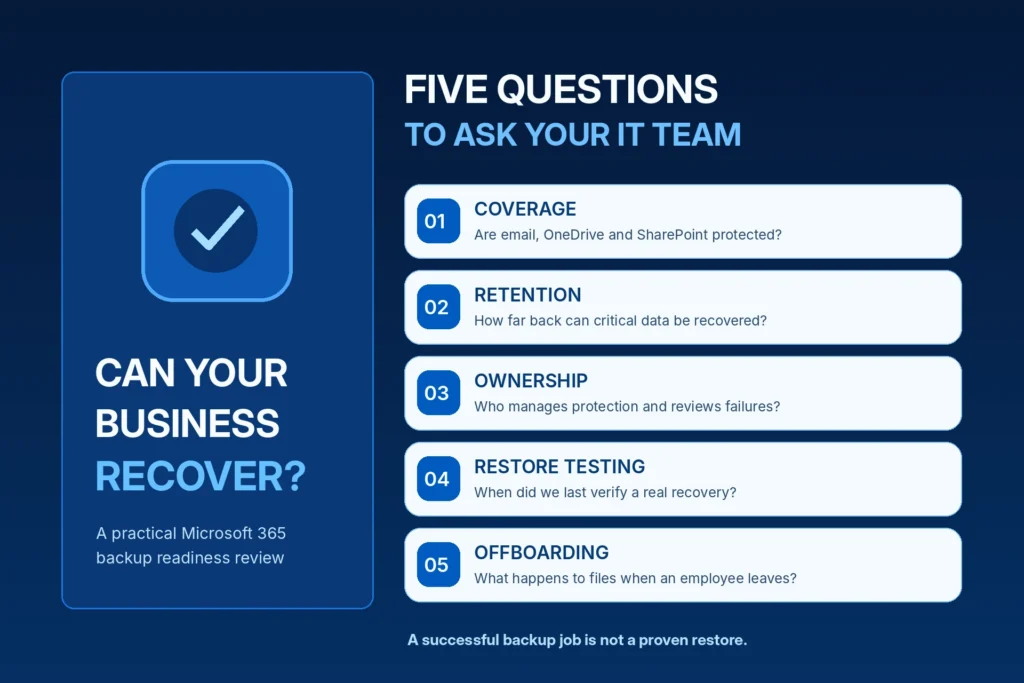
Microsoft 365 backup readiness checklist
Coverage
- All critical Exchange Online mailboxes have been identified.
- Shared mailboxes requiring protection are included where supported.
- Important OneDrive accounts are accounted for.
- Business-critical SharePoint sites are inventoried.
- Teams-related files and other collaboration workloads have been evaluated separately.
- Any excluded workloads are documented.
Retention and recovery
- Required retention periods have been established.
- Native recovery limits are understood.
- Backup policies have been checked against business requirements.
- A suitable recovery method exists for important deletion scenarios.
- Recovery priorities have been approved by leadership.
Administration and security
- Backup administration uses appropriately protected accounts.
- Administrative permissions follow an approved access model.
- Backup changes and relevant failures have assigned responsibility.
- Employee offboarding includes data-preservation review.
- Backup service ownership and billing are documented.
Proof of recovery
- A test mailbox-item recovery has been completed where appropriate.
- A representative OneDrive file has been restored.
- A selected SharePoint recovery scenario has been validated.
- Recovery results and limitations are recorded.
- The organization knows whom to contact during an incident.
A checked box should represent something verified, not simply something everyone believes is probably happening.
Technical Check: Review Exchange Online Recovery Settings
This section is intended for authorized Microsoft 365 administrators.
The following PowerShell examples read configuration information only.
They do not change retention, delete messages, remove mailboxes, or initiate restoration.
Step 1: Connect to Exchange Online
# Requires the supported ExchangeOnlineManagement module
# and appropriate administrative permissions.

Connect-ExchangeOnline
Use your organization’s approved administrative account and authentication process.
Step 2: Review a mailbox’s relevant recovery configuration
# Replace the example address with an authorized mailbox.
# Read-only configuration review.

$mailbox = "user@company.example"

Get-Mailbox -Identity $mailbox |
    Format-List DisplayName,
                RecipientTypeDetails,
                RetainDeletedItemsFor,
                SingleItemRecoveryEnabled
This can help an administrator inspect the mailbox’s deleted-item retention configuration and single-item recovery status.
What does the result prove?
It may show the configured deleted-item retention period.
It may show whether single-item recovery is enabled.
It does not prove that a dedicated Microsoft 365 Backup policy protects the mailbox.
It does not establish that a deleted message is still recoverable.
It does not confirm that a restoration test has been completed.
It also does not fully describe applicable Purview retention policies, holds, or all other relevant controls.
Why this matters
A business may hear that its mailbox has a 30-day recovery setting and assume it has a complete 30-day backup.
Those are different conclusions.
A retention setting describes one protection mechanism. It does not document the entire recovery architecture.
Technical administrators should compare the mailbox configuration with the organization’s actual retention and backup policies.
Microsoft reference: Exchange Online deleted-item retention.
What Should a Microsoft 365 Restore Test Actually Include?
A recovery test should establish whether selected business information can be restored and used appropriately.
It doesn’t need to disrupt a production environment unnecessarily.
For example, an authorized administrator may select a non-sensitive test file in a covered location.
The team can then use an appropriate supported recovery method to retrieve the required version or item.
Example restoration test record
| Item | Example validation |
|---|---|
| Protected workload | SharePoint Online |
| Test objective | Recover a selected previous file state |
| Recovery method | Supported restore workflow |
| Restore destination | Approved original or alternative location |
| Data validation | Recovered document opens and contains expected content |
| Permissions | Intended authorized users can access the result |
| Timing | Start and finish times recorded |
| Result | Pass, partial pass, or failure with explanation |
| Follow-up | Correct identified gaps and retest |
Illustrative procedure only, not an actual Mass IT Pro Solution customer result.
Why opening the file matters
A restore interface reporting success is useful.
But business recovery is not complete until the relevant users can work with the restored information.
For important files, that may involve checking the content, confirming the correct version, and ensuring appropriate permissions.
For a mailbox, it may involve verifying that selected messages or other supported items are accessible to the intended account.
For an application, the process may involve additional dependencies and business validation.
Backup success and recovery success are separate measurements.
For a more detailed discussion, read our guide on backup restore testing and business recovery readiness.
How Often Should Massachusetts Businesses Test Microsoft 365 Recovery?
There is no single testing schedule that fits every organization.
A practical schedule should reflect the importance of the data and how often the environment changes.
An accounting firm with frequent financial document updates may have different priorities from a business that primarily stores general correspondence.
Illustrative testing framework
| Business situation | Possible validation approach |
|---|---|
| New backup deployment | Verify protection and complete initial restore testing |
| New critical SharePoint site | Confirm inclusion in the protection policy |
| New employee or shared mailbox | Review coverage and ownership |
| Employee departure | Verify preservation requirements before deletion |
| Backup-policy change | Review the effect on existing and future recovery |
| Periodic operational review | Test selected recovery workflows and record outcomes |
| Security incident | Follow an incident-specific containment and recovery plan |
The actual frequency should be defined by the business’s recovery objectives, applicable requirements, and service agreement.
Testing should also be repeated after meaningful changes to the environment.
Do Massachusetts Laws Require Microsoft 365 Backup?
There isn’t a single universal Massachusetts rule requiring every business to purchase a particular Microsoft 365 backup product.
However, certain businesses have information-security, records-management, contractual, or industry-specific obligations.
Massachusetts regulation 201 CMR 17.00 establishes information-security requirements for organizations that own or license defined personal information about Massachusetts residents.
Relevant organizations should assess how their data protection, access controls, service-provider arrangements, and information-security program meet applicable requirements.
Healthcare practices, financial organizations, law firms, and other regulated businesses may have additional obligations.
A backup service may support parts of an organization’s security and recovery strategy.
Purchasing Microsoft 365 Backup does not automatically establish compliance with 201 CMR 17.00, HIPAA, or another legal framework.
Regulatory decisions should be reviewed with qualified legal or compliance professionals.
Official reference: Massachusetts 201 CMR 17.00.
Microsoft 365 Backup for Massachusetts Small Businesses
Different industries have different recovery priorities.
Accounting and financial firms
Accounting teams may need to recover client documents, financial spreadsheets, email correspondence, and shared records around important filing or operational deadlines.
Their backup strategy should reflect the specific information and applications used in the practice.
Law firms
A law office may rely on Outlook, SharePoint, and OneDrive for client communication and document collaboration.
The firm may need defined retention, access controls, recoverability, and confidentiality procedures.
Construction and trades companies
Contractors may use Microsoft 365 for estimates, invoices, project documents, employee communication, and files shared between office and field personnel.
A lost project folder or inaccessible business mailbox can interrupt ordinary operations.
Medical and dental practices
Healthcare organizations may have specialized applications and sensitive information that require additional technical and compliance review.
A Microsoft 365 backup plan should be evaluated alongside the broader environment rather than assumed to cover every practice-management system.
Professional offices and nonprofits
These organizations may depend on a small administrative team handling many technology responsibilities.
Documented cloud backup coverage and a reliable recovery contact can help reduce operational uncertainty.
Mass IT Pro Solution supports businesses across Greater Boston, MetroWest, Worcester, and surrounding Massachusetts communities with Microsoft 365 administration, backup and recovery planning, and related business IT services.
What Should You Ask Your IT Provider About Microsoft 365 Backup?
A business owner should be able to ask the following questions without needing to understand PowerShell, Microsoft Graph, or Exchange retention architecture.
1. Which Microsoft 365 workloads are protected?
Request the specific list of mailboxes, OneDrive accounts, and SharePoint sites.
2. What isn’t protected?
Ask about unsupported workloads, excluded sites, disconnected applications, and other limitations.
3. How long can we recover deleted or changed information?
Request the actual configured recovery periods.
4. What happens when someone leaves the company?
Ask how required mail and files are preserved.
5. Who monitors the backup service?
Understand who reviews coverage, failures, and changes.
6. Can you show us a recent restore test?
Request an appropriate example of documented recovery validation.
7. What happens during ransomware or mass deletion?
Ask who initiates containment and recovery and what the process involves.
8. Is the backup cost included in our current agreement?
Confirm licensing, storage, monitoring, and support charges.
9. Who owns the backup configuration and administrative access?
The organization should understand the provider’s permissions and continuity arrangements.
10. Can we actually recover within our business’s acceptable timeframe?
If that hasn’t been tested, the expectation may be based on an assumption.
A capable IT provider should be able to explain what has been configured, what has been verified, and what remains uncertain.
Residential Microsoft 365 Users: Does OneDrive Protect Personal Files?
Home users face a related but different problem.
Microsoft 365 Personal and Family services may include OneDrive storage, synchronization, version history, recycle-bin recovery, and other applicable features.
But that doesn’t establish that every photo, document, or personal file on a computer is backed up.
The user needs to confirm which folders are actually being synchronized or protected.
For important personal information, it may also be appropriate to maintain a separate backup according to the user’s needs.
A homeowner usually doesn’t need the same enterprise backup administration, regulatory review, or managed-service structure as a Massachusetts business.
Mass IT Pro Solution can assist residential customers with PC and Mac support, OneDrive configuration, data-transfer concerns, and related troubleshooting under the applicable residential service scope.
Free business IT consultations should not be confused with residential diagnostic or repair appointments.
Frequently Asked Questions About Microsoft 365 Backup
Does Microsoft 365 include automatic backup?
Microsoft 365 includes native recovery mechanisms such as deleted-item recovery, recycle bins, and version history. Microsoft also offers a separate Microsoft 365 Backup service. A standard subscription should not be assumed to include a complete, separately configured backup plan for every workload.
Is OneDrive a backup or cloud storage?
OneDrive is primarily a cloud storage and synchronization service with recovery features. It can be part of a data-protection strategy, but synchronization and recycle-bin recovery do not automatically replace a dedicated backup plan.
Does Microsoft 365 back up Outlook emails?
Exchange Online includes native deleted-item recovery and other retention mechanisms. Dedicated Microsoft 365 Backup can protect supported Exchange mailboxes when configured. The exact recovery options depend on the applicable services and policies.
How long does Microsoft 365 retain deleted emails?
Exchange Online retains items removed from Deleted Items for 14 days by default, configurable to 30 days. Other retention policies and holds may alter recovery behavior. That timeframe should not be confused with all email retention.
How long does OneDrive keep deleted files?
For work or school accounts, Microsoft generally documents up to 93 days through the applicable recycle-bin process, subject to relevant settings and conditions.
Can SharePoint restore files deleted more than 90 days ago?
Ordinary SharePoint recycle-bin recovery is generally limited to 93 days from deletion. Other retention or backup mechanisms may provide additional options when properly configured. Recoverability must be assessed for the specific item and environment.
Does Microsoft 365 Backup protect Teams chats?
Microsoft 365 Backup protects supported Exchange, OneDrive, and SharePoint workloads. It should not be assumed to provide complete standalone backup of every Teams chat, meeting item, or application. Teams-related data requires a workload-specific coverage review.
Does Microsoft 365 Backup support shared mailboxes?
Microsoft’s current documentation identifies user and shared mailboxes as supported. Other mailbox types may not be supported. Administrators should confirm the exact coverage and configuration.
Can Microsoft 365 Backup restore individual files?
Microsoft’s current restoration documentation describes granular file and folder recovery for supported SharePoint and OneDrive scenarios, alongside broader site and account restoration.
Is Microsoft 365 Backup included with Business Premium?
Microsoft 365 Business Premium includes valuable security and administration capabilities, but the dedicated Microsoft 365 Backup service uses an additional billing model. Businesses should verify actual service activation and protected workloads rather than assuming it is enabled.
Can ransomware affect files synchronized with OneDrive?
Yes. Unwanted changes to synchronized files may be reflected in cloud storage. Recovery features and dedicated backups may help restore healthy information, but incident containment and account security remain important.
What happens to a former employee’s OneDrive?
Microsoft documents default retention and recovery behavior for deleted-user OneDrive accounts, with administrative configuration options. Businesses should preserve necessary information before deleting accounts and should review how licensing and retention affect the process.
Is a Microsoft 365 retention policy the same as backup?
No. Retention policies support information preservation and lifecycle requirements. Dedicated backup services focus on restoring information under supported recovery workflows. Some needs overlap, but the tools serve different purposes.
How much does Microsoft 365 Backup cost?
Microsoft publishes consumption-based pricing for its native backup service. The total business cost depends on protected data, applicable billing, and any additional implementation or managed-service charges.
Does Microsoft 365 Backup guarantee recovery?
No. Recovery depends on the protected workload, configured policy, available recovery points, supported operation, and circumstances of the incident. Restoration should be validated against business requirements.
Can Mass IT Pro Solution help manage Microsoft 365 backups?
Mass IT Pro Solution provides Microsoft 365 administration, backup and disaster recovery services, and business IT support for Massachusetts organizations. A review can help determine appropriate coverage, recovery requirements, and available protection options.
Final Takeaway: Microsoft 365 Is Reliable Cloud Infrastructure, Not a Substitute for Recovery Planning
Microsoft 365 provides substantial built-in protection and recovery capabilities.
It also offers a dedicated backup service with additional options for Exchange Online, OneDrive, and SharePoint.
But the presence of those features does not establish that your company’s critical information is protected according to its actual needs.
A business needs to know:
What is protected?
How long can it be recovered?
Who manages the protection?
What happens when a recovery is required?
Has anyone verified the result?
Those are the questions that turn cloud storage into a dependable data-protection strategy.
A backup solution shouldn’t be judged only by whether a dashboard is green.
It should be judged by whether the business can recover the information it needs, within the agreed requirements, when something goes wrong.
Need a Microsoft 365 Backup Review in Massachusetts?
Mass IT Pro Solution helps Massachusetts businesses evaluate Microsoft 365 environments, identify data-protection gaps, and plan appropriate backup and recovery arrangements.
Our services can include reviewing Exchange Online, OneDrive, SharePoint, user administration, backup coverage, recovery requirements, and related security controls.
Depending on the environment, we can help evaluate Microsoft’s native backup capabilities alongside suitable third-party solutions.
Request a Free Business IT Consultation
You can also review our Backup and Disaster Recovery Services and Microsoft 365 and Cloud Solutions.
Mass IT Pro Solution
Microsoft 365 | Cloud Backup | Disaster Recovery | Cybersecurity | Managed IT Services
Phone: 508-254-4704
Email: support@massitpro.com
Serving Greater Boston, MetroWest, Worcester, and surrounding Massachusetts communities.
Backup scope, retention, recovery capabilities, service charges, and support responsibilities depend on the products and agreements in place. No backup service can guarantee recovery of every item, uninterrupted operations, or regulatory compliance. Regulatory discussions are general information, not legal advice.
Technical Sources and Further Reading
- Microsoft: Overview of Microsoft 365 Backup
- Microsoft: Restore Data in Microsoft 365 Backup
- Microsoft: Microsoft 365 Backup Frequently Asked Questions
- Microsoft: Microsoft 365 Backup Pricing
- Microsoft: Exchange Online Deleted-Item Retention
- Microsoft: SharePoint Recycle-Bin Recovery
- Microsoft: OneDrive Retention and Deletion
- Microsoft: Restore Your OneDrive
- Microsoft: Shared Responsibility in the Cloud
- Massachusetts: 201 CMR 17.00